Your Android Phone Is Tracking Everywhere You Go. Here's How to See It and Clear It
Google Maps Timeline keeps a day-by-day record of where your Android phone has been. Here is how to see it, delete a day or all of it, and stop it from recording.
Your Android phone keeps a diary of where you go. Every visit, every route, every stop for coffee, saved day by day in Google Maps Timeline. If you turned it on at some point and forgot about it, that diary might stretch back years.
Short version: open Timeline, look at what is there, and decide what stays. Set auto-delete to 3 months so old entries clear themselves, and check which apps hold location permission while you are at it. The whole cleanup takes about ten minutes.
How to see your Timeline
Timeline lives inside Google Maps, and it needs Maps version 11.106 or newer. It is not available on Android Go devices.
- Open Google Maps.
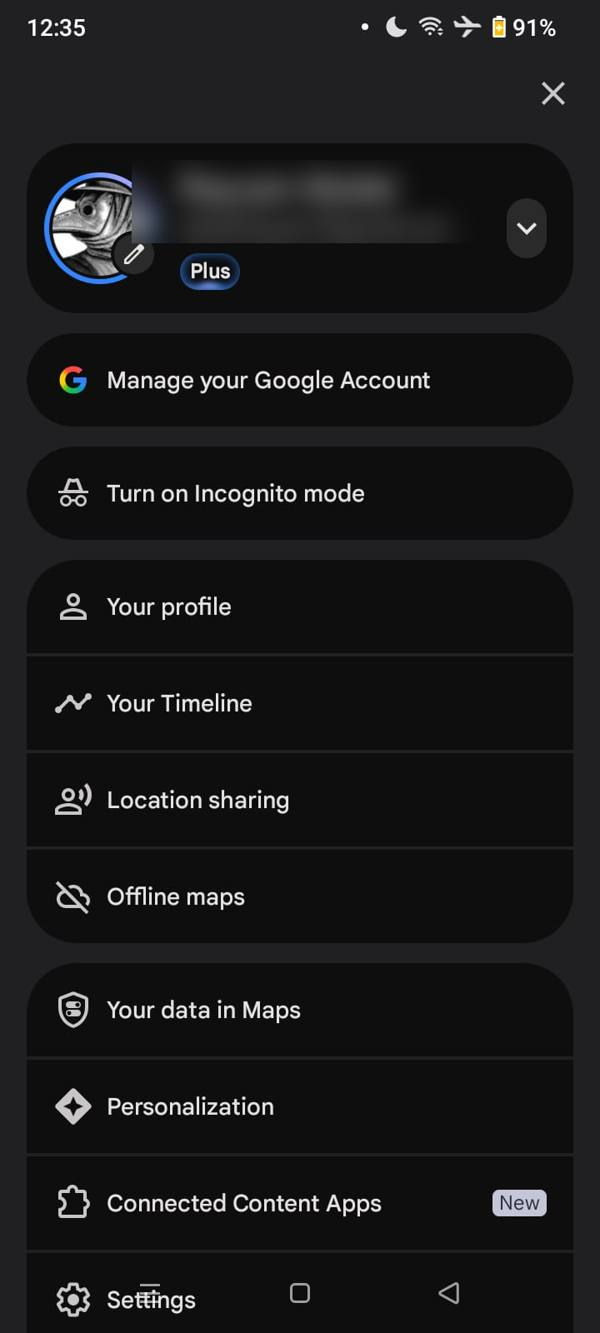
- Tap your profile picture or initial at the top right.
- Tap Your Timeline.
You get a map and a day-by-day list of places you visited and routes you took. Tap any day on the calendar to see that day in detail. The tabs at the top (Places, Cities, World) give you the highlight reel if you want the big picture instead of the daily log.
One thing worth knowing before you start deleting: Timeline is off by default and only records if you opt in. If your Timeline is empty, it was never turned on, and you can skip straight to the app permissions section below.
Delete a single day
Maybe one day is the problem. A trip you would rather not keep, or a day with a wrong location that bugs you. Deleting one day is the fastest fix.
- Open Your Timeline and pick the day.
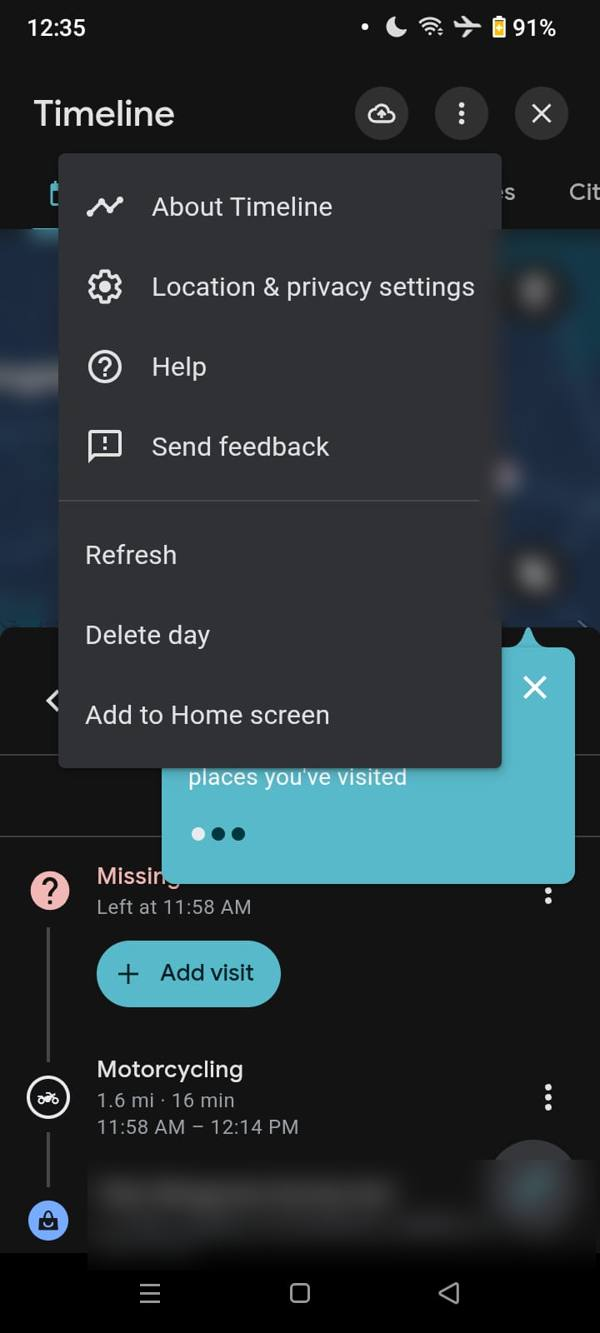
- Tap the three-dot menu at the top right.
- Tap Delete day and confirm.
That day is gone from this device. Google is blunt about this: deleted Timeline data is permanent and cannot be recovered. There is no recycle bin, so be sure before you confirm.
You can also delete a single stop instead of the whole day. Open the day, tap the three-dot menu next to one visit, and delete just that visit.
Delete a date range, or everything
For a bigger cleanup, the Location and privacy settings page has the heavy tools.
- Open Your Timeline.
- Tap the three-dot menu, then Location & privacy settings.
- Pick Delete range of Timeline data to wipe a stretch of dates, or Delete all Timeline data to start from zero.
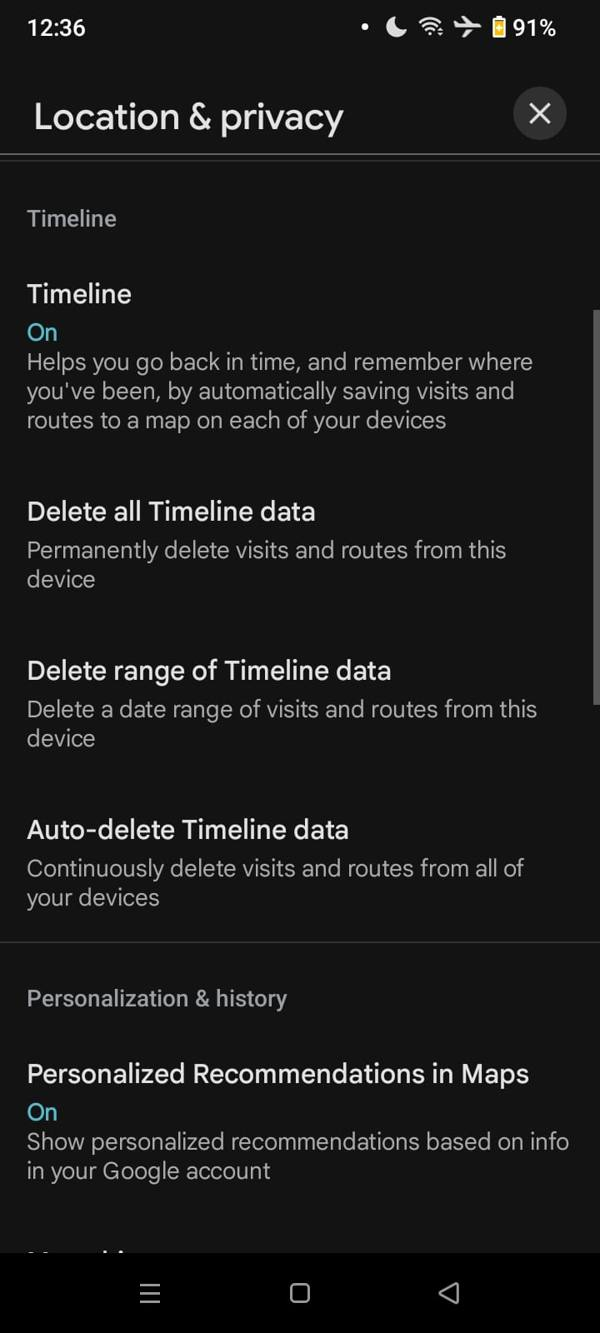
Three catches. The delete only covers this device, and your backups are separate. Turning Timeline off does not erase what is already saved, you have to delete it separately. And other Google settings, like Web and App Activity, can still hold your general area from your IP address even after Timeline is clean.
Set auto-delete so you never have to do this again
Manual deletion is a chore you will forget. Auto-delete is the setting that makes the problem go away on its own.
- Open Your Timeline.
- Tap the three-dot menu, then Location & privacy settings.
- Tap Auto-delete Timeline data.
- Pick 3 months, 18 months, or 36 months.
Three months is the right pick for most people. It keeps recent history useful (finding that restaurant from last month still works) while nothing older than a season survives. Google documents the three options on its Timeline help page.
Turn Timeline off completely
If you would rather your phone kept no diary at all, switch Timeline off.
- Open Your Timeline.
- Tap the three-dot menu, then Location & privacy settings.
- Tap Timeline is on.
- Choose Turn off, or Turn off and delete activity to stop recording and wipe the history in one move.
Turning it off stops new entries. It does not touch your backups, and a factory reset or clearing Google Play services data wipes the Timeline stored on that device. If you change your mind later, Timeline stays off until you opt back in.
Audit which apps can see your location
Timeline is only half the story. The other half is the apps on your phone, and this is where most people find surprises.
Open Settings, tap Location, and look at the App location permissions row. It tells you straight up how many apps have access. On the phone in the screenshot below, 17 of 38 apps had location access.
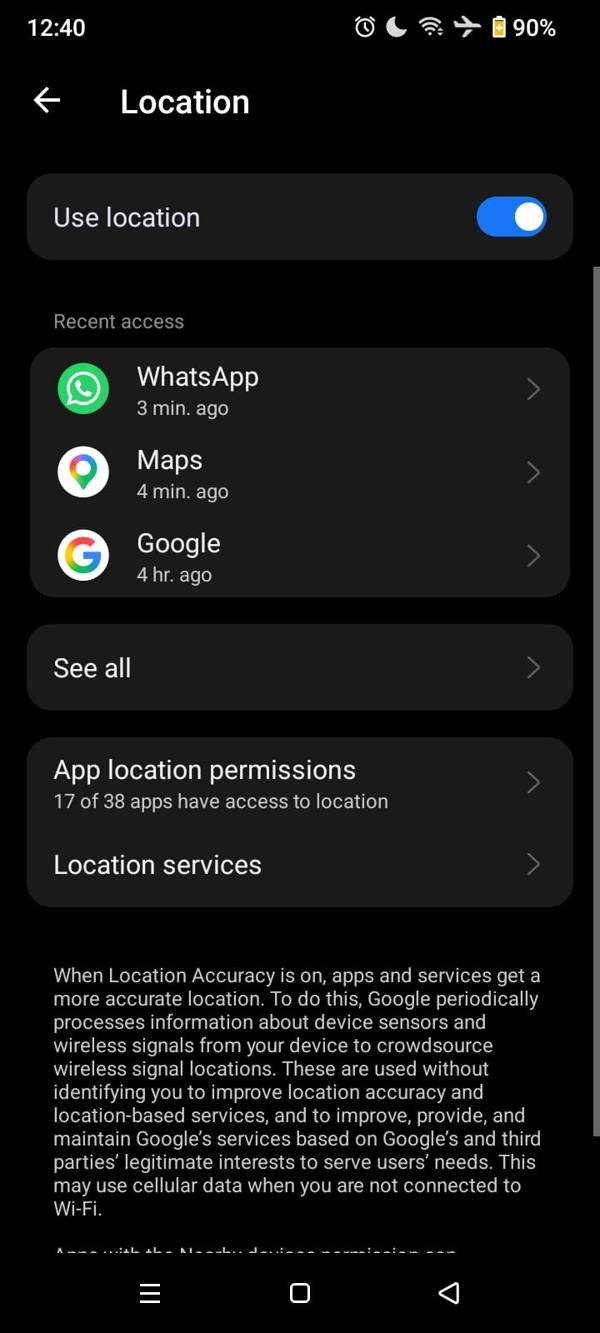
Tap App location permissions to see the full list, grouped by how much access each app has. Tap any app to change it. You get four choices:
- Allow all the time. The app can read your location in the background, even when you are not using it. Only navigation, fitness tracking, and a few similar apps have a real reason for this.
- Allow only while using the app. The sensible default for maps, ride hailing, delivery, and weather apps. They get your location when open and lose it when closed.
- Ask every time. The app has to ask on each use. Good for apps you use rarely.
- Don’t allow. No location at all. Most apps still work fine without it.
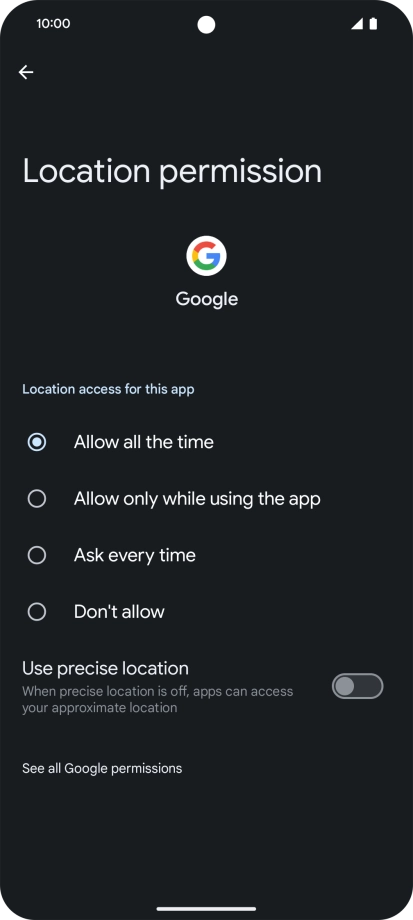
Screenshot: Vodafone UK device guide.
Be strict with the first group. If an app sits under “Allowed all the time” and cannot explain why it needs your location at 3 a.m., move it down to “while using the app” and see if you notice any difference. You almost never will.
Precise or approximate: the toggle most people miss
On the same per-app screen, look for the Use precise location toggle. Android 12 and newer let you hand an app an approximate location instead of an exact one.
With precise location off, the app only learns your general area, roughly a few kilometers wide. That is plenty for a weather app, a news app, or a shopping app that just wants your city. Keep precise location on only for apps that genuinely need your exact spot: navigation, ride hailing, food delivery. Android’s developer docs explain how the two accuracy levels work.
The two hidden toggles under Location services
Back in Settings > Location > Location services, there are two more switches that quietly feed location data even when Wi-Fi and Bluetooth look switched off.
- Wi-Fi scanning lets the phone scan for nearby networks to pin down your position.
- Bluetooth scanning does the same with nearby Bluetooth devices.
- Google Location Accuracy combines GPS with Wi-Fi networks, cell towers, and sensor data for a faster, more accurate fix. Google says it periodically processes sensor and wireless signal information to crowdsource signal locations.
Turning Wi-Fi and Bluetooth scanning off costs you some indoor and city accuracy, and maps may take longer to lock on. That is the trade. If you want location to work well, leave them on and control the apps instead. If you want the tightest setup, switch them off along with Location Accuracy and accept that navigation gets a little slower to find you.
Bottom line
Open Timeline today and look at it once. Most people are surprised by how much is in there. Delete what you do not want, set auto-delete to 3 months, then spend two minutes demoting apps from “all the time” to “while using the app” and switching the rest to approximate location. Ten minutes now, and your phone stops keeping a diary you never asked to write. It is not total privacy, your photos can still carry GPS metadata and your carrier still sees your phone, but Timeline and app permissions are the two layers that matter most.

Two new loop and stack articles every weekday. Subscribe and follow.it emails you when one lands. No spam, unsubscribe anytime.